OpenClaw Deployment Guide: Manual Setup vs. One-Click Install with DeskClaw
OpenClaw is one of the fastest-growing open-source AI agent frameworks on GitHub, with over 60,000 stars and a thriving community. It turns large language models into real agents that can browse the web, manage files, send emails, control apps, and automate complex workflows — all from your local machine.
But getting started with OpenClaw can be intimidating. The standard setup involves installing Node.js, configuring JSON files, managing API keys from multiple providers, and running background daemons. In this guide, we'll walk through two paths:
- Part 1: The full manual deployment — step by step, for both Windows and macOS.
- Part 2: The DeskClaw shortcut — one download, zero configuration, instant access.
Table of Contents
- Part 1: Manual OpenClaw Deployment
- 1.1 Prerequisites
- 1.2 Install OpenClaw CLI
- 1.3 Configuration File
- 1.4 API Key Setup
- 1.5 Start the Daemon
- 1.6 Verify Your Installation
- 1.7 Troubleshooting
- Part 2: DeskClaw One-Click Deployment
- 2.1 Download & Install
- 2.2 First Launch
- 2.3 Using DeskClaw
- Manual vs. DeskClaw Comparison
Part 1: Manual OpenClaw Deployment
1.1 Prerequisites
Before installing OpenClaw, make sure your system meets the following requirements:
- Node.js 22+ — OpenClaw requires Node.js version 22.0.0 or higher.
- npm — Comes bundled with Node.js.
- A terminal — PowerShell or CMD on Windows, Terminal on macOS.
- At least one API key — From Anthropic, OpenAI, Google, or DeepSeek.
First, verify your Node.js version:
$ node --version
v22.12.0

$ npm --version
10.9.0
If you don't have Node.js 22+ installed, download it from nodejs.org. We recommend the LTS version.
Tip: On macOS, you can also install Node.js via Homebrew: brew install node@22
1.2 Install OpenClaw CLI
Install OpenClaw globally using npm:
$ npm install -g @anthropic-ai/openclaw

added 387 packages in 24s

$ openclaw --version
OpenClaw v2.4.1
Windows users: If you get a permissions error, run PowerShell as Administrator or use npx @anthropic-ai/openclaw instead.
1.3 Configuration File
OpenClaw uses a openclaw.json configuration file in your home directory. Create it with the following structure:
{
  "model": "claude-sonnet-4-6",
  "apiKeys": {
    "anthropic": "sk-ant-api03-xxxxxxxxxxxx",
    "openai": "sk-proj-xxxxxxxxxxxx",
    "google": "AIzaSyxxxxxxxxxxxx",
    "deepseek": "sk-xxxxxxxxxxxx"
  },
  "permissions": {
    "allowFileAccess": true,
    "allowNetworkAccess": true,
    "allowShellCommands": false
  },
  "daemon": {
    "autoStart": true,
    "port": 3100,
    "logLevel": "info"
  },
  "skills": [
    "web-search",
    "file-manager",
    "email-assistant"
  ]
}
Key fields explained:
model— Default model for conversations. Options includeclaude-opus-4-6,claude-sonnet-4-6,gpt-5.4,gemini-3.1-pro, etc.apiKeys— Your API keys for each provider. You only need keys for the providers you want to use.permissions— Controls what actions the agent can take. Start restrictive and open up as needed.daemon— Background service settings. The daemon keeps OpenClaw running and ready.skills— Pre-built capabilities to enable (web search, file management, email, etc.).
You can also initialize the config interactively:
$ openclaw init

? Select your default model: claude-sonnet-4-6
? Enter your Anthropic API key: sk-ant-api03-****
? Enter your OpenAI API key (optional): sk-proj-****
? Enable file access? Yes
? Enable network access? Yes
? Enable shell commands? No

✓ Configuration saved to ~/.openclaw/openclaw.json
1.4 API Key Setup
You can set API keys either in the config file (as shown above) or via environment variables. Environment variables take precedence over the config file.
# Add to your shell profile
export ANTHROPIC_API_KEY="sk-ant-api03-xxxxxxxxxxxx"
export OPENAI_API_KEY="sk-proj-xxxxxxxxxxxx"
export GOOGLE_API_KEY="AIzaSyxxxxxxxxxxxx"
export DEEPSEEK_API_KEY="sk-xxxxxxxxxxxx"

# Reload your profile
$ source ~/.zshrc# Set for current session
$env:ANTHROPIC_API_KEY = "sk-ant-api03-xxxxxxxxxxxx"
$env:OPENAI_API_KEY = "sk-proj-xxxxxxxxxxxx"
$env:GOOGLE_API_KEY = "AIzaSyxxxxxxxxxxxx"
$env:DEEPSEEK_API_KEY = "sk-xxxxxxxxxxxx"
# Or set permanently (requires restart)
[System.Environment]::SetEnvironmentVariable("ANTHROPIC_API_KEY", "sk-ant-api03-xxxxxxxxxxxx", "User")Where to get your API keys:
| Provider | Console URL | Key Prefix |
|---|---|---|
| Anthropic | console.anthropic.com | sk-ant-api03- |
| OpenAI | platform.openai.com | sk-proj- |
| aistudio.google.com | AIzaSy | |
| DeepSeek | platform.deepseek.com | sk- |
Security Warning: Never commit API keys to version control. Add .openclaw/ to your .gitignore and use environment variables in production environments.
1.5 Start the Daemon
The OpenClaw daemon is a background service that keeps the agent runtime ready and handles incoming requests. Start it with:
$ openclaw daemon start

✓ Daemon started on port 3100
✓ PID: 48291
✓ Log file: ~/.openclaw/logs/daemon.log

$ openclaw daemon status

Status:    running
PID:       48291
Port:      3100
Uptime:    2m 13s
Model:     claude-sonnet-4-6
Skills:    web-search, file-manager, email-assistant
To configure auto-start on boot:
# macOS — register as a launch agent
$ openclaw daemon install

# Windows — register as a startup task
$ openclaw daemon install --startup

# Uninstall auto-start
$ openclaw daemon uninstall
1.6 Verify Your Installation
Run a quick test to make sure everything is working:
$ openclaw chat "Hello! What can you do?"

🤖 Hello! I'm your OpenClaw agent. I can:

  • Browse the web and search for information
  • Read, create, and manage files on your computer
  • Send and manage emails
  • Control applications and automate workflows
  • And much more depending on your enabled skills!

What would you like me to help with?
You can also switch models on the fly:
# Use a specific model for one session
$ openclaw chat --model gpt-5.4 "Explain quantum computing"

# List all available models
$ openclaw models list

Available models:
  claude-opus-4-6        Anthropic     $5.00 / $25.00 per 1M tokens
  claude-sonnet-4-6      Anthropic     $3.00 / $15.00 per 1M tokens
  claude-haiku-4-5       Anthropic     $1.00 / $5.00  per 1M tokens
  gpt-5.4                OpenAI        $2.50 / $15.00 per 1M tokens
  gpt-5.3-codex          OpenAI        $1.75 / $14.00 per 1M tokens
  gemini-3.1-pro         Google        $2.00 / $12.00 per 1M tokens
  deepseek-v3            DeepSeek      $0.14 / $0.28  per 1M tokens
  deepseek-r1            DeepSeek      $0.55 / $2.19  per 1M tokens
1.7 Troubleshooting
Error: EACCES permission denied
Fix: Use sudo npm install -g @anthropic-ai/openclaw on macOS/Linux, or run PowerShell as Administrator on Windows.
Error: Node.js version 22+ required
Fix: Update Node.js from nodejs.org or use nvm install 22 to manage multiple versions.
Error: Invalid API key for provider anthropic
Fix: Double-check your key at console.anthropic.com. Ensure the key starts with sk-ant-api03- and has not expired.
Error: Daemon failed to start — port 3100 in use
Fix: Change the port in openclaw.json or stop the conflicting process with openclaw daemon stop && openclaw daemon start.
Part 2: DeskClaw — One-Click Deployment
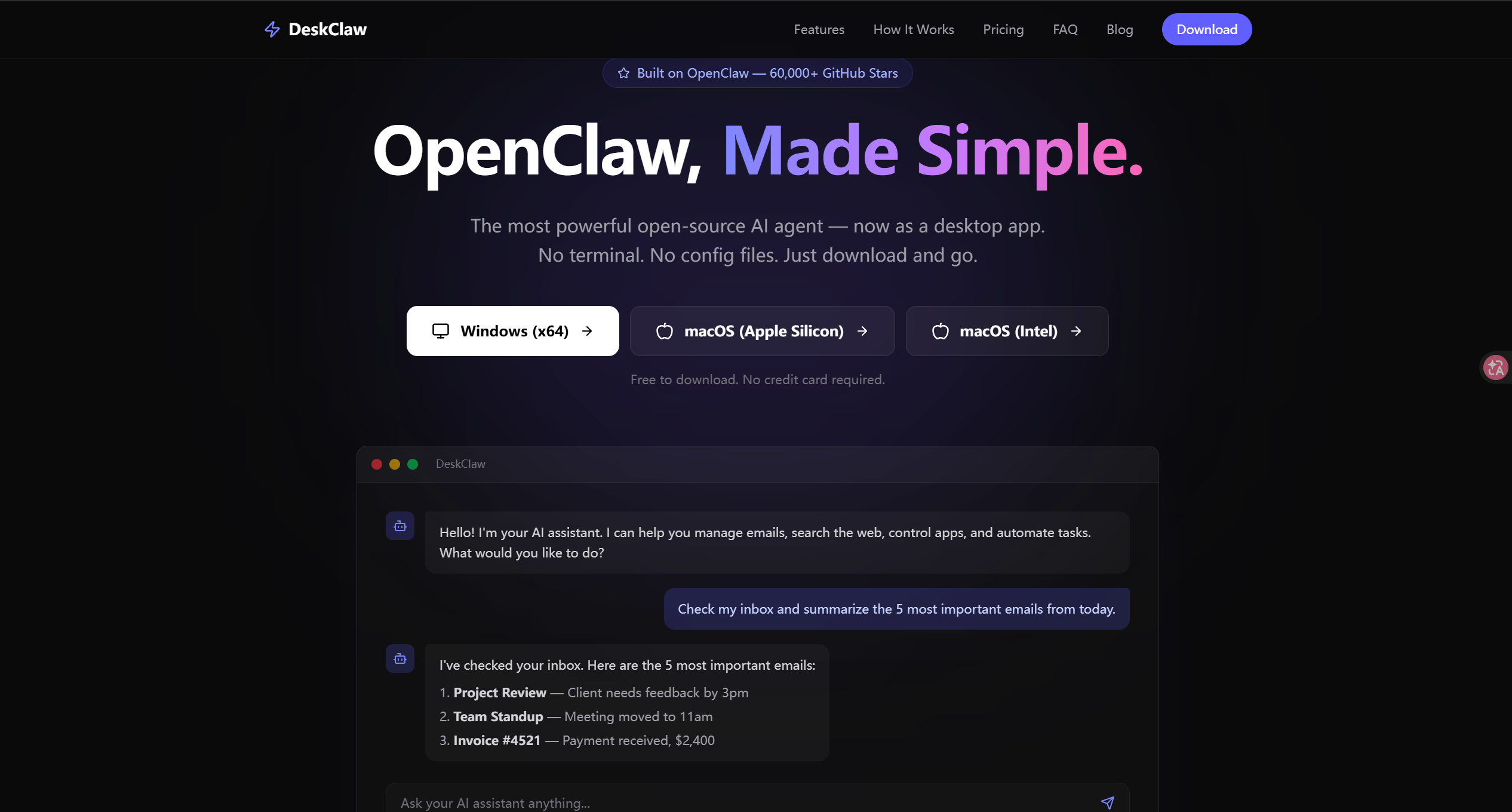
If the manual setup feels like too much, DeskClaw wraps the full power of OpenClaw into a polished desktop app. No terminal, no config files, no API key juggling. Just download, install, and start chatting.
2.1 Download & Install
Choose your platform and download the installer:
Windows: Run the .exe installer and follow the prompts. DeskClaw will be added to your Start Menu and Desktop.
macOS: Coming soon.
2.2 First Launch
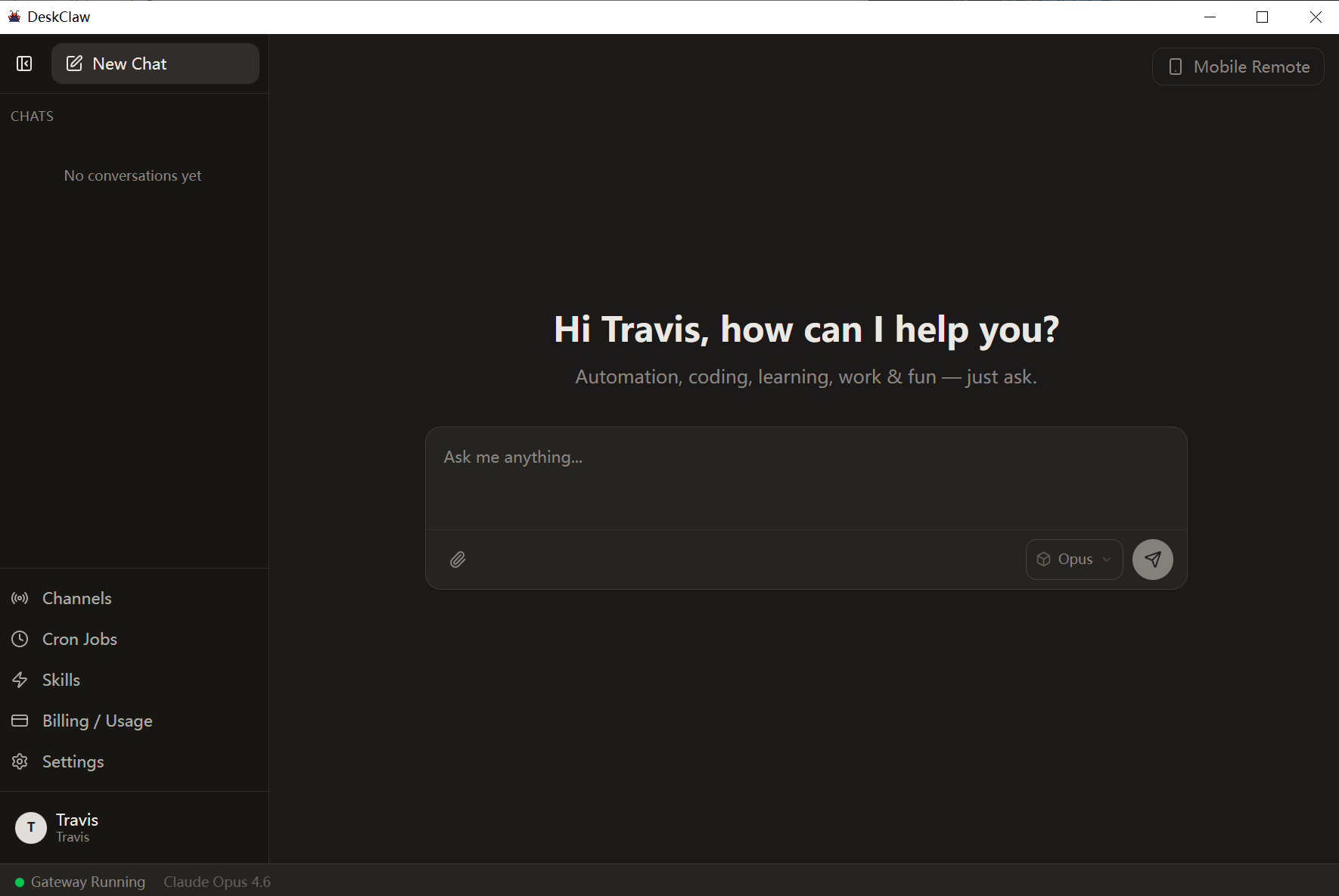
When you open DeskClaw for the first time, you'll see a clean, ready-to-use interface. There's no terminal to open, no config file to edit. Here's what happens automatically:
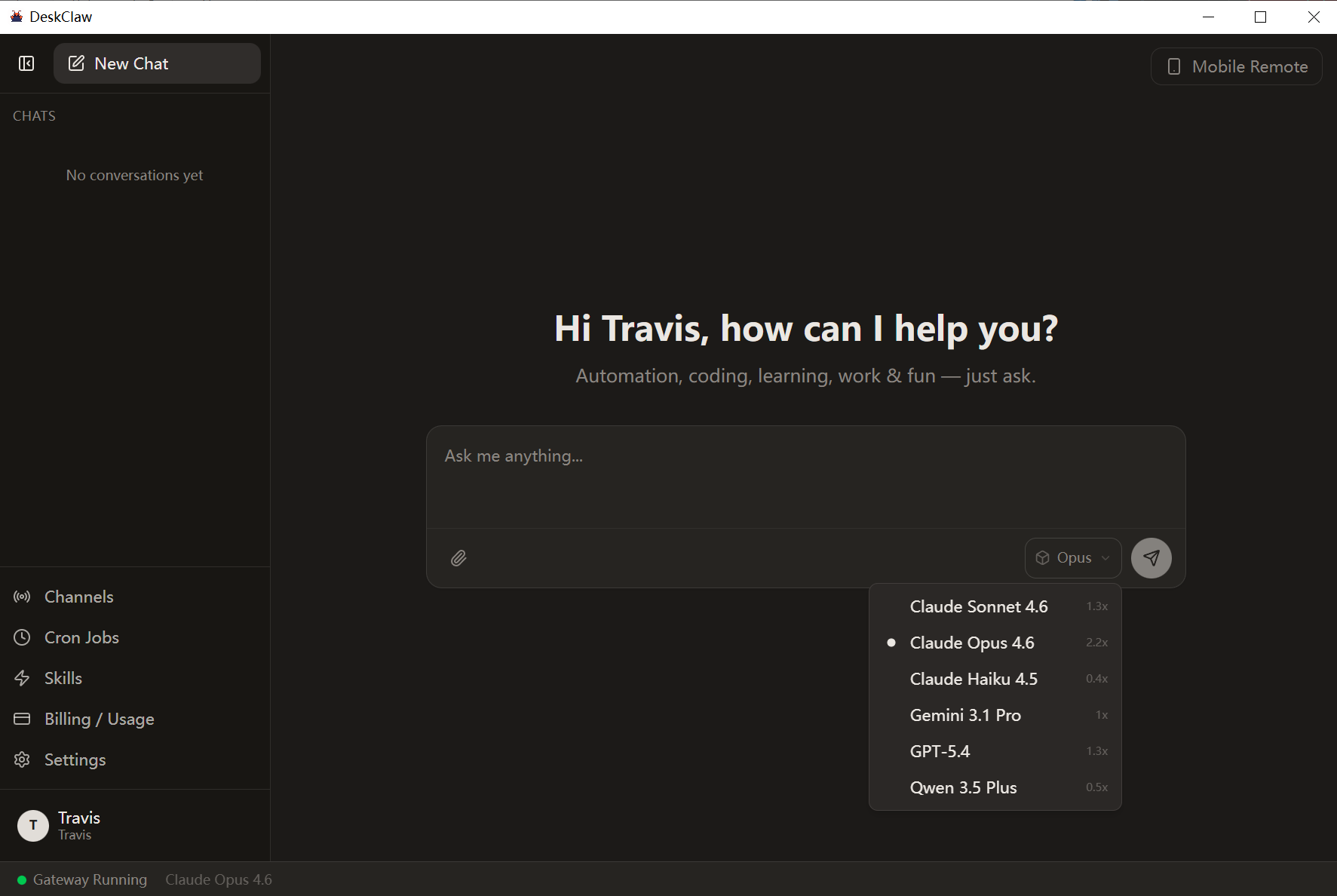
- All top models pre-integrated — Claude Opus 4.6, Sonnet 4.6, GPT-5.4, Gemini 3.1 Pro, DeepSeek, and more are ready out of the box.
- No API keys needed — DeskClaw manages authentication for you. Pay-as-you-go with a simple top-up system.
- Free credits on signup — Start with enough credits for approximately 50 messages, no payment required.
- 10 pre-installed skills — Web search, Gmail management, Spotify control, file manager, and more.
2.3 Using DeskClaw
Switch models instantly: Click the model selector dropdown to switch between any available model. No config changes, no restart required.
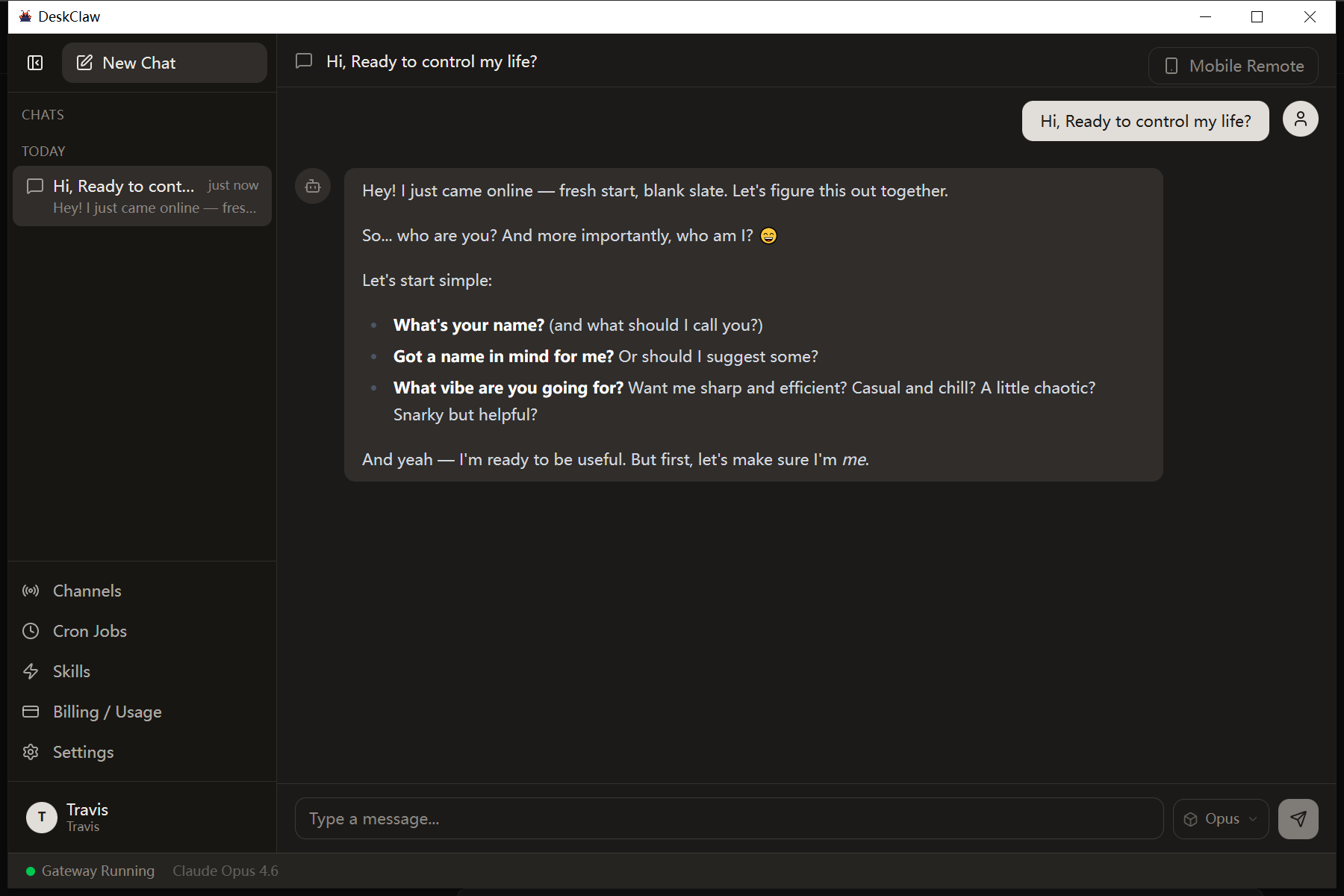
Start a conversation: Type your message and the agent will respond using your selected model. You can run multiple sessions in parallel, each with a different model if you like.
Key features at a glance:
- Multi-session chat — Run parallel conversations with different models.
- Telegram & WhatsApp integration — Control your agent from your phone.
- Real-time web search — The agent can browse the internet live.
- Usage dashboard — Track spending, top up credits, view history.
- Computer use — The agent can interact with your desktop applications.
Manual Setup vs. DeskClaw: The Full Comparison
| Criteria | Manual OpenClaw | DeskClaw |
|---|---|---|
| Setup time | 15–30 minutes | 2 minutes |
| Technical skill | Command line + JSON editing | Click & run |
| API keys | Manual — get from each provider | Pre-configured — none needed |
| Available models | Any model you have a key for | All top models built-in |
| Model switching | Edit config or use CLI flags | One-click dropdown |
| Pricing | Official API rates | 50–70% off official rates |
| Updates | Manual npm update | Auto-updates |
| Best for | Developers who want full control | Everyone — especially non-technical users |
Welcome to DeskClaw!
We've integrated the world's top AI models into one beautiful desktop app — Claude Opus 4.6, GPT-5.4, Gemini 3.1 Pro, DeepSeek, Kimi K2.5, and more. Switch freely between any model with a single click, and enjoy 50%–70% off official API pricing.
No multiple accounts. No juggling API keys. One app, every model, lower prices.